KEEN adopter’s guide
KEEN helps you connect operational evidence to controls, assess risk, maintain your management system and prepare audits. This guide describes the application’s working screens and the decisions you make in them. Features and editing actions depend on your permissions.
1. Start with a framework and a scope
Select a framework in the framework switcher before reviewing controls, clauses, evidence coverage or the Statement of Applicability. The selected framework follows supported navigation links and filters. Changing it changes the view of your information; it does not create another copy of your evidence or risk register.
The KEEN Assurance Framework is available as KEEN-AF:1.0. It provides a practical set of assurance controls and works with the reusable risk library. Treat it as a starting point for your organisation’s assurance programme. It is not a certification, an auditor’s opinion or a replacement for the licensed text of an external standard.
Begin by agreeing the organisational scope, assets, responsible people and applicable frameworks. Review each relevant control, record why it is included or excluded, and link the policies, risks and evidence that support your decision. A high evidence count shows that records are linked; it does not prove that a control is effective.
A practical first session
- Sign in and select the framework you intend to assess.
- Review the Controls, Clauses and Statement of Applicability screens.
- Add your assets and responsible people under ISMS.
- Create an asset-specific risk, either directly or from the reusable library.
- Ask an administrator to configure an evidence definition for one operational source.
- Inspect a collected event, its artefact and its mapped controls.
- Create an audit and sample the evidence with an explanation of what it demonstrates.
2. Sign-in, accounts and permissions
Use the sign-in method configured for your installation. Self-managed installations can use local accounts or configured identity providers. Your administrator controls users, groups and permissions. An account can be active without having permission to perform every action.
In the dedicated hosted configuration, sign in through the hosting portal using the email code, choose the application’s hosting region and open your assigned URL when provisioning completes. The initial hosted configuration permits only its registered owner identity. Creating an additional local user does not grant that person hosted sign-in access.
An administrator has full application access. A normal user receives explicit permissions, directly or through groups. An inherited role is resolved from group membership. Read permissions and manage permissions are separate. Ask for the specific access needed for your work rather than sharing another person’s login.
Typical permission families are events.read; audits.read and audits.manage; risk.read and risk.manage; pestle.read and pestle.manage; interested_parties.read and interested_parties.manage; isms.read and isms.manage. Question and incident creation/deletion have separate permissions. audittrail.read controls access to the administration audit trail.
3. Manage frameworks in the application
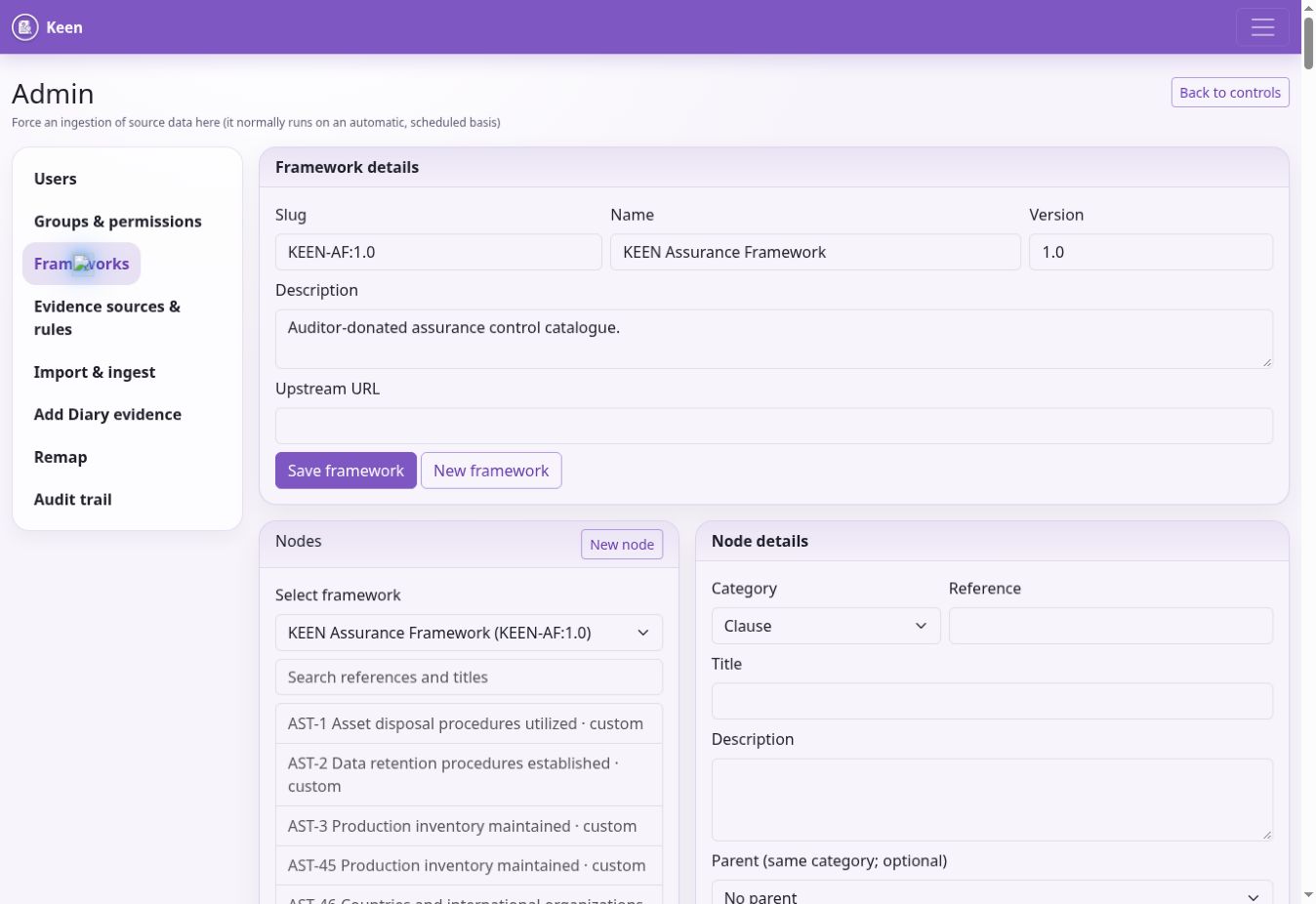
An administrator opens Admin → Frameworks. Use Select framework to edit an existing framework or New framework to create one. Enter a stable slug, name, version, description and optional upstream URL, then choose Save framework. A slug is an identifier: the editor does not rename an existing framework’s slug.
Choose New node to add a Clause, Control or Custom node. Supply its reference and title, then its description, optional parent of the same category, upstream URL, sort order and In scope setting. Control nodes can link to related clauses. Choose Save node and verify the item in the appropriate framework view.
Select a node in the searchable tree to edit it. Its reference and category identify it; create a new node if those need to change. Parent relationships must remain valid. Deleting a node can be blocked by child nodes, clause links or evidence mappings. Review those relationships before attempting deletion and consider marking an item out of scope when historical relationships must remain.
Routine framework management takes place here. You do not need to prepare a JSON file to create or maintain a framework. Use upstream links for authorised guidance and avoid pasting licensed standard text unless your organisation has the right to store and share it.
4. Controls, clauses and applicability
Controls describe the practices you assess. Open a control to inspect its details, scope justification, linked evidence, risks, related ISMS entities and visualisations. Use the evidence links to check dates, sources and relevance rather than relying only on totals.
Clauses describe management-system requirements and can form a hierarchy. A clause can link to controls and supporting evidence, PESTLE(E) items, interested parties and ISMS entities. Review both direct evidence and the context supplied by linked controls.
The Statement of Applicability brings scope decisions and relationships together for the selected framework. Explain exclusions and record the basis for inclusion. Keep these explanations current when the business, its risks or its framework changes. Evidence mappings and risk links assist the assessment; they do not make the applicability decision for you.
5. Configure collection and mapping with evidence definitions
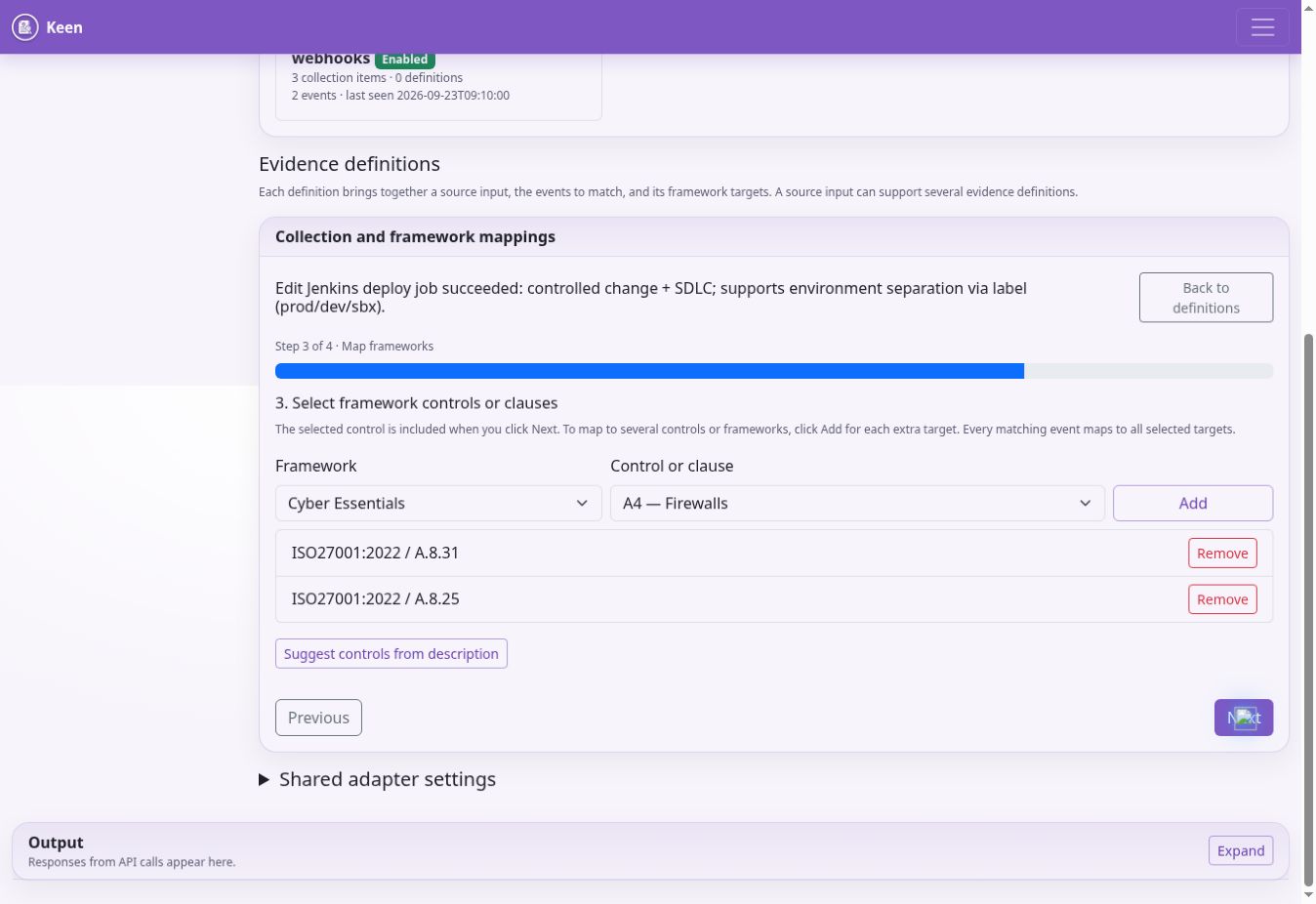
Administrators use Admin → Evidence sources & rules. The Source catalogue shows supported adapters and their availability. An evidence definition combines a source input, the events that qualify as evidence, and the framework controls or clauses they support. One input can support several definitions, and one event can support several frameworks.
Choose Create evidence definition to open the four-step editor.
- Describe the evidence. Explain what the collected evidence demonstrates, such as successful production deployments following the change process.
- Collect and recognise. Select the source adapter and input type. Choose an existing query, job, feed or page, or create a collection item. All events from this source is suitable for a deliberately source-wide definition. Inspect a Recent event with Use this event, then narrow the definition using event fields if needed.
- Select framework controls or clauses. Select a framework and target. Use Add for each extra target, including targets in other frameworks. The selected target is also included when you choose Next. Check the complete list.
- Preview and save. Choose Preview matches and inspect both matches and nonmatches. Set the confidence and enabled state under Advanced rule settings, then Save rule.
Every filled matching field must match. Prefer source, system, actor, action, outcome, severity or label values that you can see on real events. Use regex only where exact values cannot express the intended match. A successful preview is evidence about the sampled events, not a guarantee about every future event.
The description-based control suggestions are candidates to review. They do not decide which requirements the evidence satisfies. Confidence is the rule author’s mapping confidence between 0 and 1, not a compliance score.
Collection settings and credentials
A Jenkins job’s kind determines its event action; its label determines the event system. For Loki, configure the query and its normalised event fields. For BookStack, select a book and then a page, grouped by chapter; use the additional page-loading buttons when needed. The picker uses the server’s configured credentials.
Additional collection settings accepts connector-specific JSON options inside the editor. Shared adapter settings contains advanced settings common to an adapter. Connection credentials and adapter enablement remain server settings: ask the hosting operator or systems administrator to configure them. Never paste tokens or passwords into descriptions, matching fields or shared JSON settings.
Definitions before events arrive
Select Predefine this rule before evidence is available when there is no sample to preview. Check the first real events as soon as collection runs, preview the definition against them and correct any assumptions about field values or collection identity.
6. Apply rules to existing evidence
Apply this rule to previously collected evidence in the background is selected by default in the rule editor. Review it before saving. The application creates a background job; completion is separate from saving the definition. You can also use Apply saved rule to past evidence and inspect the reported job status.
After tightening or deleting a rule, old automatic mappings may need review. Under Review old rule mappings after changing a rule, select a source and review a batch of at most 500. Inspect the result before choosing Remove reviewed stale mappings. This action considers automatic rule mappings; manual and imported mappings are preserved.
Admin → Remap provides a broader operation with dates, limit, source, system, action and outcome filters. By default it processes events with no mappings. Include already-mapped events adds new rule-based mappings to events already linked elsewhere. Adding mappings is different from removing stale ones.
If another administrator has saved a newer configuration, reload and reconcile your changes. Do not repeatedly overwrite a version conflict. Restore a prior rule set is available in the editor; restoring configuration does not itself undo all historical event mappings.
7. Collect and inspect evidence
Admins can run enabled adapters from Admin → Import & ingest. Read the output and check the resulting Events view. Scheduled ingestion uses backend jobs and source cursors to continue from previous runs. A source can be enabled but return no new events if its query, time window or upstream permissions yield no results.
Use Admin → Add Diary evidence for a manual record. Describe the event and its time, attach relevant files or permitted external links, and select applicable controls. A diary record can be sampled in an audit just like other evidence. Record enough context for another person to understand who did what and why.
The Events screen supports search and filtering. Open an event to inspect its timestamp, source, system, actor, action, outcome, severity, summary and available normalised payload. Review artefacts separately from the summary. An artefact is the stored supporting material; external links can change or require access to another system.
Redaction removes recognised secret-like values during ingestion. Optional masking can affect personal data in evidence or exports. Do not assume that all sensitive information is automatically detected. Review source content and the suitability of what you collect.
On an event, inspect mapped controls and mapping rationale. Where permitted, add or adjust manual mappings, start a question, create an incident or sample the event into an audit. Mapping something is an assertion of relevance: make the rationale clear enough for an auditor to challenge it.
8. Sources, questions and incidents
Sources groups evidence by origin. Use a source’s evidence links and visualisations to inspect activity over time and identify gaps. Sources can also be associated with effectiveness measures. Missing evidence may indicate a collection problem, a quiet system or an inappropriate query; investigate before drawing a control conclusion.
Questions provide a discussion attached to the relevant entity or event. State the issue, the information needed and its context. Follow replies in Questions or your account view. Notification delivery depends on the installation’s configuration, so the application record remains the place to confirm the discussion.
An incident started from evidence records the concern and can notify an external incident system when that integration is configured. Check the result and follow your organisation’s incident process. A notification attempt is not a guarantee that a third-party ticket was created.
9. Assess and maintain risks
KEEN uses one set of risk scenarios across the risk editor, register and heatmap. A risk can be associated with confidentiality, integrity and availability (CIA), an asset, categories, an owner, treatment information and controls from relevant frameworks.
Use Risks to create or edit a scenario. Describe the threat and business context, select or create the relevant asset, set its CIA associations and assign an owner. Review the applicable controls. Keep the scenario specific enough to support a treatment decision; avoid creating several indistinguishable risks for the same situation.
Rate inherent likelihood and impact before treatment, then residual likelihood and impact after the intended treatment. Each rating is 1–5 and the corresponding score is likelihood × impact. The same ratings appear in the editor, register and heatmap. Record the treatment strategy, status, plan and due date so a lower residual score has an explanation.
The register’s thresholds classify scores. Default maximums are 4 for low, 9 for moderate and 16 for high; scores above the high threshold are critical. Threshold changes apply across the register. Agree the scoring method before changing them, and distinguish an unrated risk from a low risk.
Use the reusable risk library
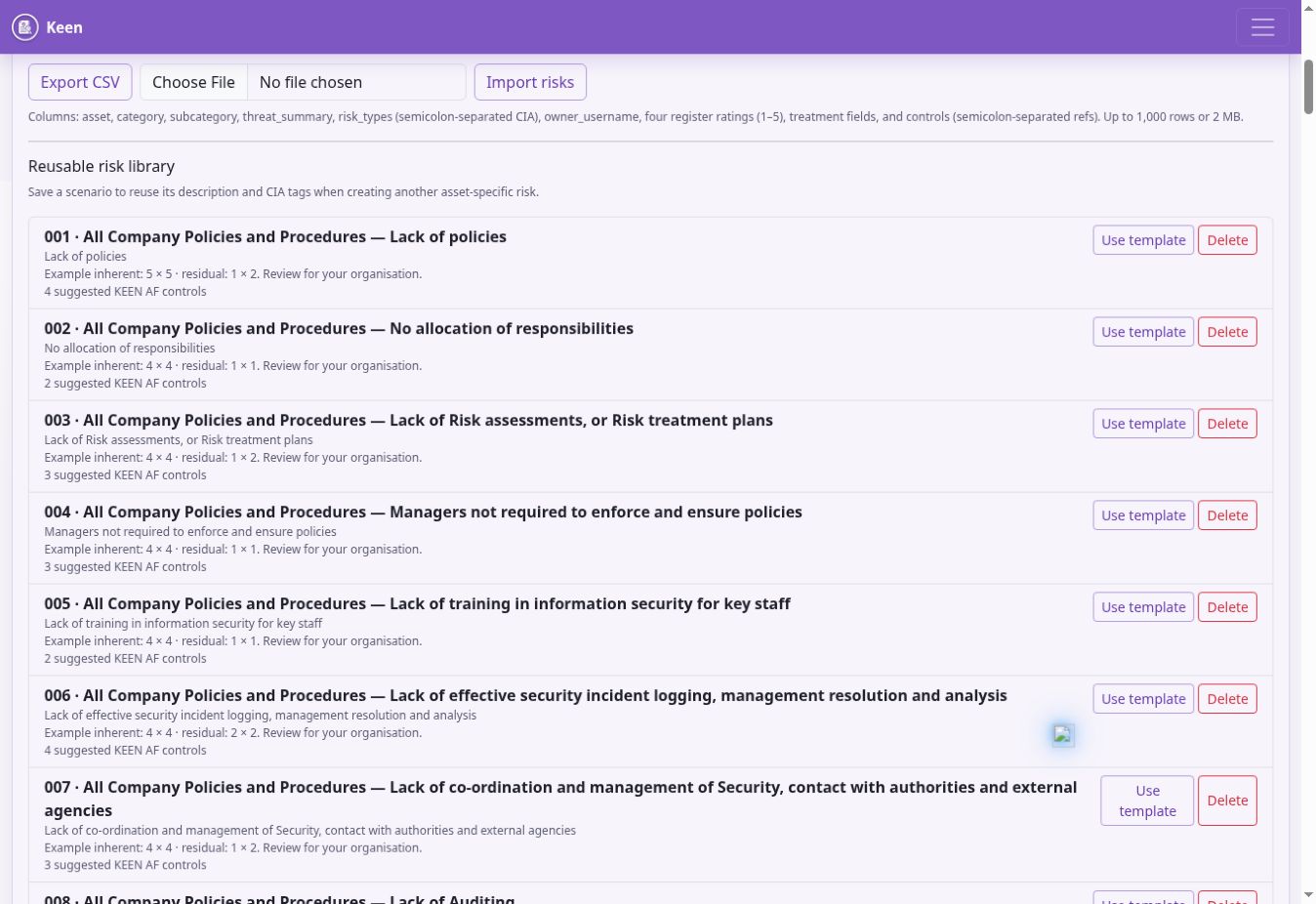
Open the Risk register and find Reusable risk library. Choose a scenario to start a new assessment. KEEN fills the description, CIA tags, treatment guidance and available suggested assessment fields. Review the suggested asset and example ratings, set the actual owner and treatment, and save the risk for your organisation.
The supplied library integrates with the KEEN Assurance Framework. Templates can suggest KEEN-AF control references; when creating the risk, valid remaining references are linked under KEEN-AF:1.0 even if another framework is currently selected. Links for other frameworks remain separately manageable. A suggested control is not evidence that it is implemented.
To reuse your own scenario, select a risk in the register and choose Save scenario to library. Use a general scenario name and remove customer-specific or personal details from reusable text. Reuse creates an assessment to review; it is not a live synchronisation of every risk made from that template.
Risk register exchange and the Mitigator
Export the current register as CSV when you need an external review. Import creates new scenarios, rather than updating existing records. Start with an exported header, use the current column names and choose the intended framework for control references. The import accepts up to 1,000 rows and 2 MB and rejects the whole file if a row fails validation. Review ownership, scores and control references before importing to avoid duplicates.
The KEEN Mitigator suggests controls using scenario categories, CIA associations and other assessment inputs. Use those suggestions alongside the library and your own analysis. Inspect suggested relationships and remove irrelevant ones; a suggestion is not an independent risk assessment.
10. PESTLE(E) and interested parties
Use PESTLE(E) to record external and organisational issues through the available lenses. Link each relevant issue to business processes and framework clauses. Explain relevance and impact so the record supports scope and management-system decisions. Review the issues when the organisation or its environment changes; sample them into an audit where useful.
Interested Parties records the people and organisations whose needs affect the management system. Record the nature of their interest, associated controls and planned communications, including method, events or frequency. Link the party to relevant clauses and other available records. Keep stakeholder expectations distinct from evidence that an obligation has been met.
11. Maintain the ISMS
ISMS brings the management-system records together. Objectives describe intended outcomes. Link them to the appropriate controls, owners and effectiveness measures. Measures describe how effectiveness is assessed; metrics are the dated observations or scores used to assess a measure.
Review the measurement method, target and source before adding a metric. Some metrics are received through configured webhooks. Automatic zero-value behaviour, where configured, is specific to the measure and should be interpreted as part of its method, not automatically as proof that a system reported successfully.
Policies and processes can be maintained as document records with supporting links and associations. The Documents workspace supports folders, types, tags, rich-text content, version history and comments. Save substantive changes as a new content version and review the history when establishing which policy wording was in force. Concurrent edits can require a reload rather than silently replacing another person’s content.
Assets represent the resources your organisation manages. Keep ownership, organisation relationships and relevant risks current. The organisation chart records roles and reporting relationships. The Access Matrix records who or which role should have access to an asset and at what level; it is an assurance record, not a mechanism that grants or revokes access in the external system.
Application Configuration records help document relevant application settings. Minutes of Meetings records decisions, discussion and attendance, including people who do not have KEEN accounts. Link decisions to objectives, risks, controls and follow-up work where the screen supports those relationships.
People and vendors
Open People & vendors to maintain personnel and supplier assurance. A person does not need a KEEN account. Record their optional account, organisation role and assets, then add assurance records such as training, screening or policy acknowledgement. Each assurance record can include a category, requirement, status, completion and expiry dates, authoritative source and evidence link.
Vendor records contain supplier details and associated assets. An asset has one supplying vendor: assigning it to another vendor moves that relationship. Review the effect before saving. These records organise evidence of your checks; they do not perform the checks or replace the upstream authoritative source.
12. Plan and conduct audits
Use Audits to create an audit with a clear scope, framework, dates and responsible participants. Add relevant controls and clauses, then sample evidence, risks or other supported records. Explain why each sample was selected and what it demonstrates. Include both favourable and adverse evidence where needed for a balanced conclusion.
Record findings with enough detail to identify the requirement, observed facts and necessary action. Maintain notes and the executive summary, and review the audit before completing it. Completed audits restrict further mutation; finish the review before changing status.
Scheduled audits generate audit records through the background scheduler. Creation timing depends on the configured look-ahead window. Email and calendar invitations require outbound mail configuration. Check that the scheduled audit actually appears and that participants can access it.
Use scope-coverage views across audits to identify requirements that have not been examined recently. Coverage is a planning aid: an item appearing in an audit is not by itself proof of an adequate sample or successful outcome.
13. Search, visualisations and personal settings
Use search and filters together, and check the active framework and date range when results look incomplete. Saved searches, also called Shortcuts, keep useful query combinations for later. Account preferences include date format, timezone, default landing page, default framework, theme and filter behaviour.
Visualisations show relationships and distributions for controls, clauses, evidence, risks and other entities. Follow a relationship back to its underlying record before making an assurance judgement. A graph is a navigation and review tool, not a separate source of truth.
Your account view brings together questions and records you own or relate to, including audits, risks, objectives, organisation roles, assets and meetings. Keep account details and assignments current so responsibility is visible.
14. Review changes and resolve problems
Entity Changelog records semantic changes to supported records: who changed them, when and the field differences. The administration Request Log records API requests, response status and timing. Use the entity history for the content change and the request log to investigate the surrounding activity. These are different records and neither should be assumed to be a complete recording of every browser interaction.
If a control has no evidence, check the active framework, target reference, source collection, event fields and definition preview. If old mappings remain after a rule change, review stale automatic mappings. If a save conflicts, reload the latest record. If an action is unavailable, check your permissions with an administrator.
When reporting a problem, include the page URL, approximate time and timezone, event or record identifier, expected result and visible error. Exclude passwords, tokens and unnecessary personal data. For a hosted instance, use the support contact in your service order for availability, backups, regional hosting and account-ownership issues.
Documentation edition: 2 October 2026